Desktop-Gallery

a powerful image management tool for Linux, MacOS and Windows

Usage & Screenshots

Usage Workflow

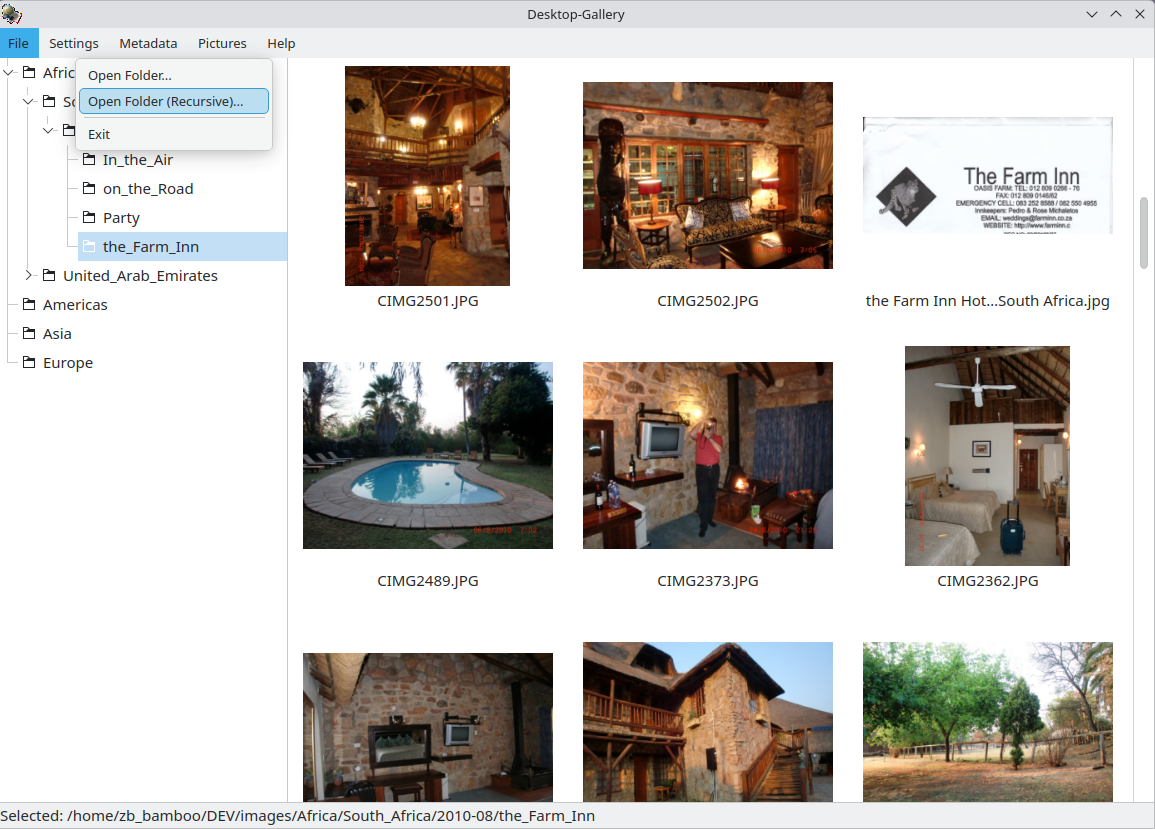
Import: Use File -> Open Folder (Recursive) to scan your image library.

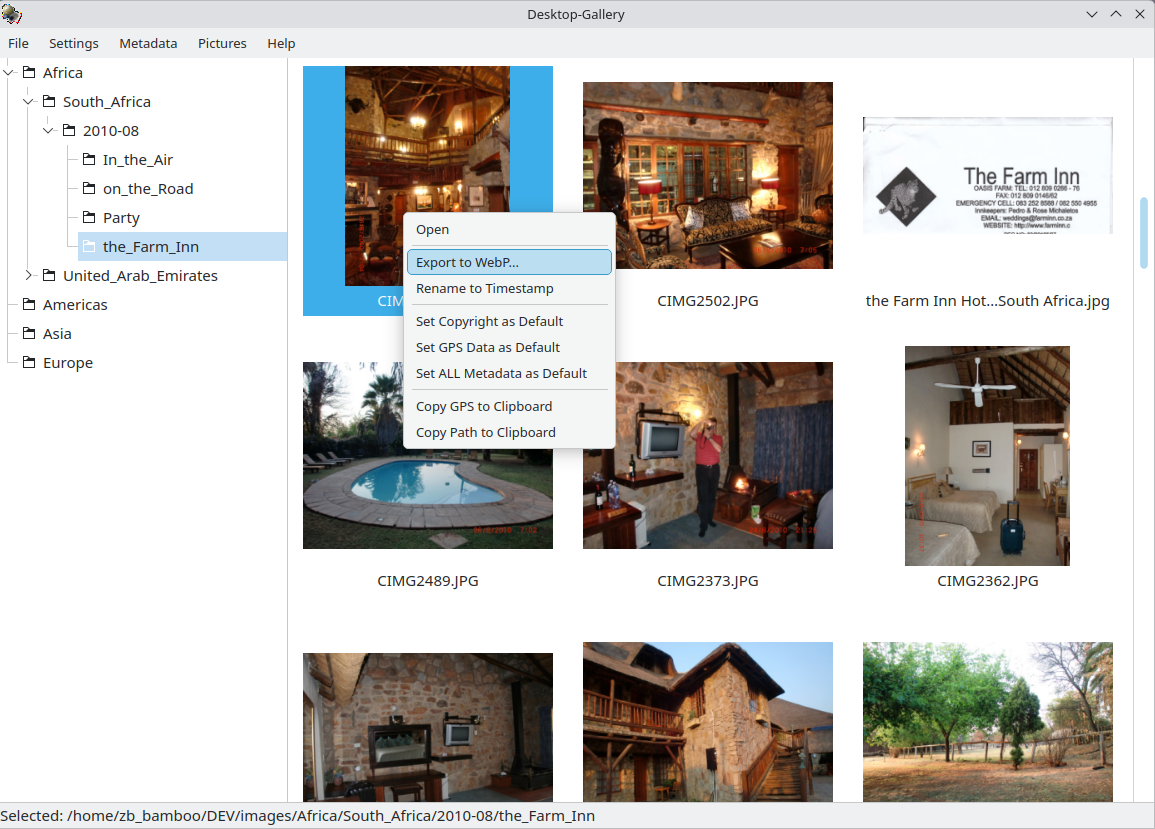
Organize: Select images to view details. Use the context menu to copy GPS data or paths.

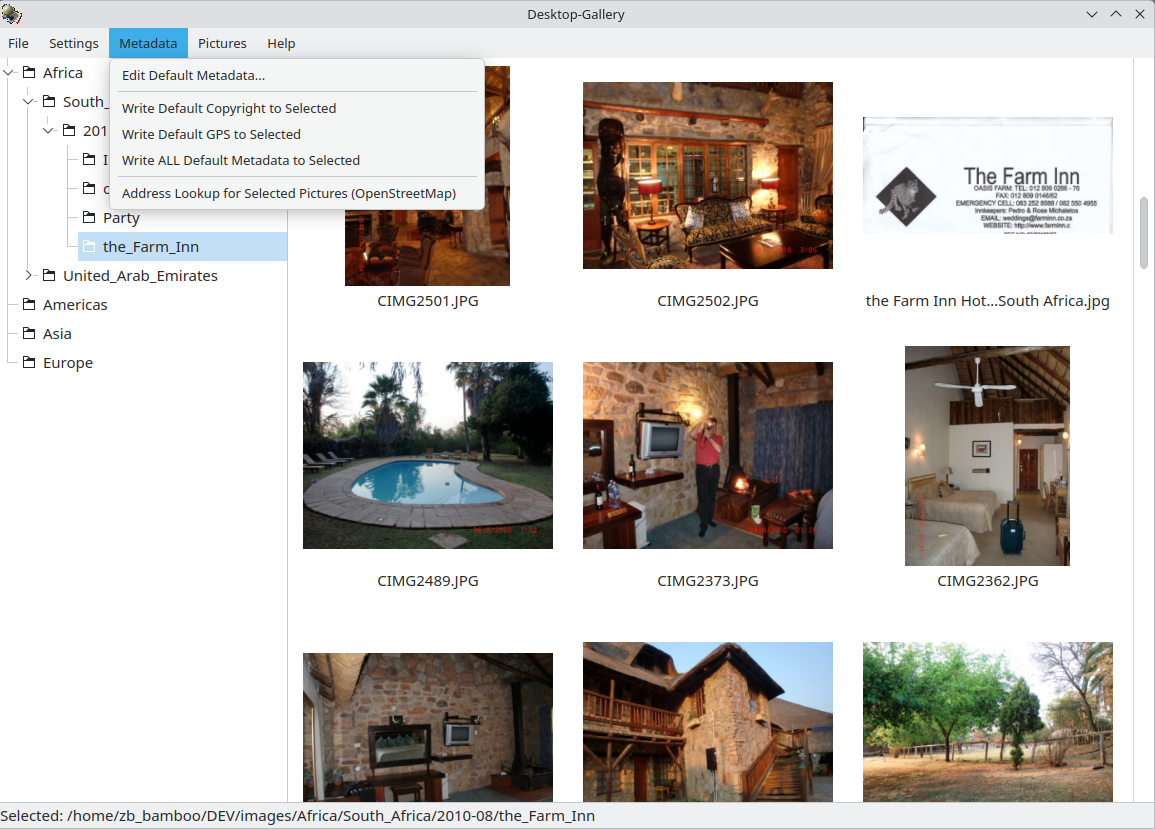
Edit Metadata: Double-click metadata fields to edit. Use Metadata -> Write default... for bulk updates.

Geocode: Select images with GPS data and run Metadata -> Address lookup to auto-fill location tags.

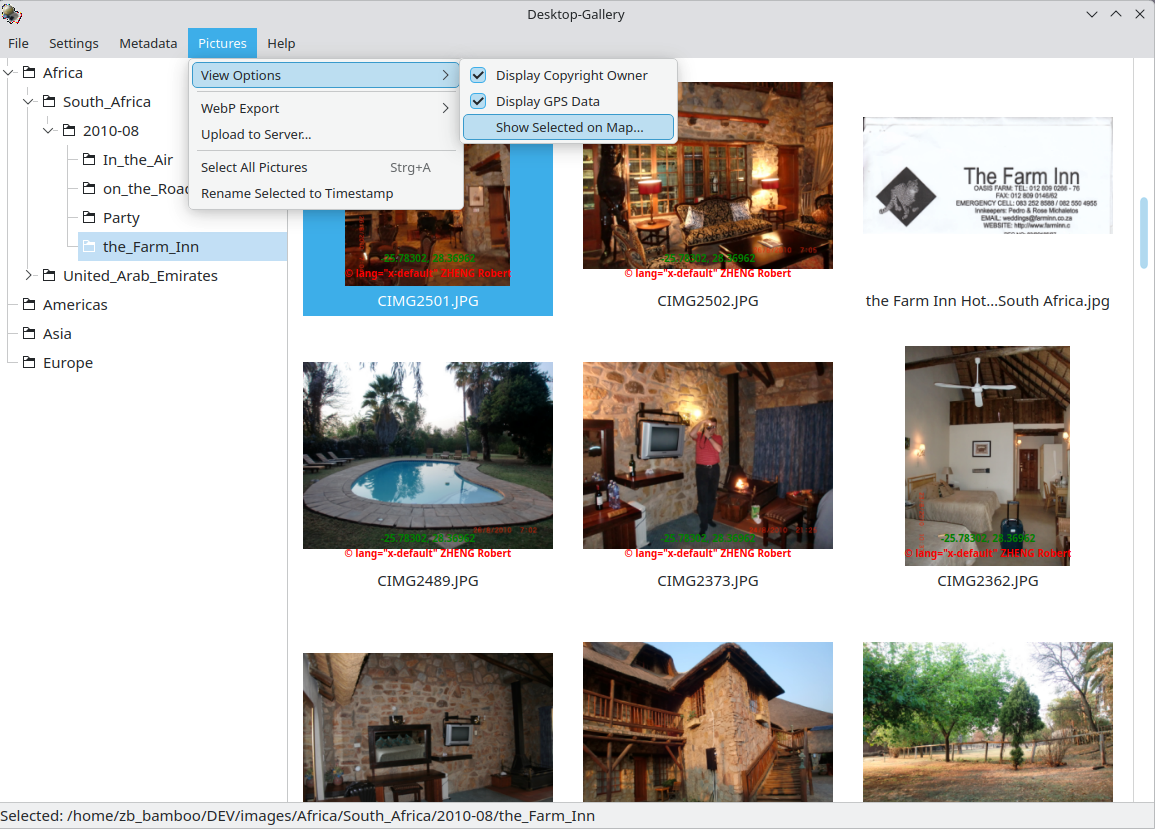
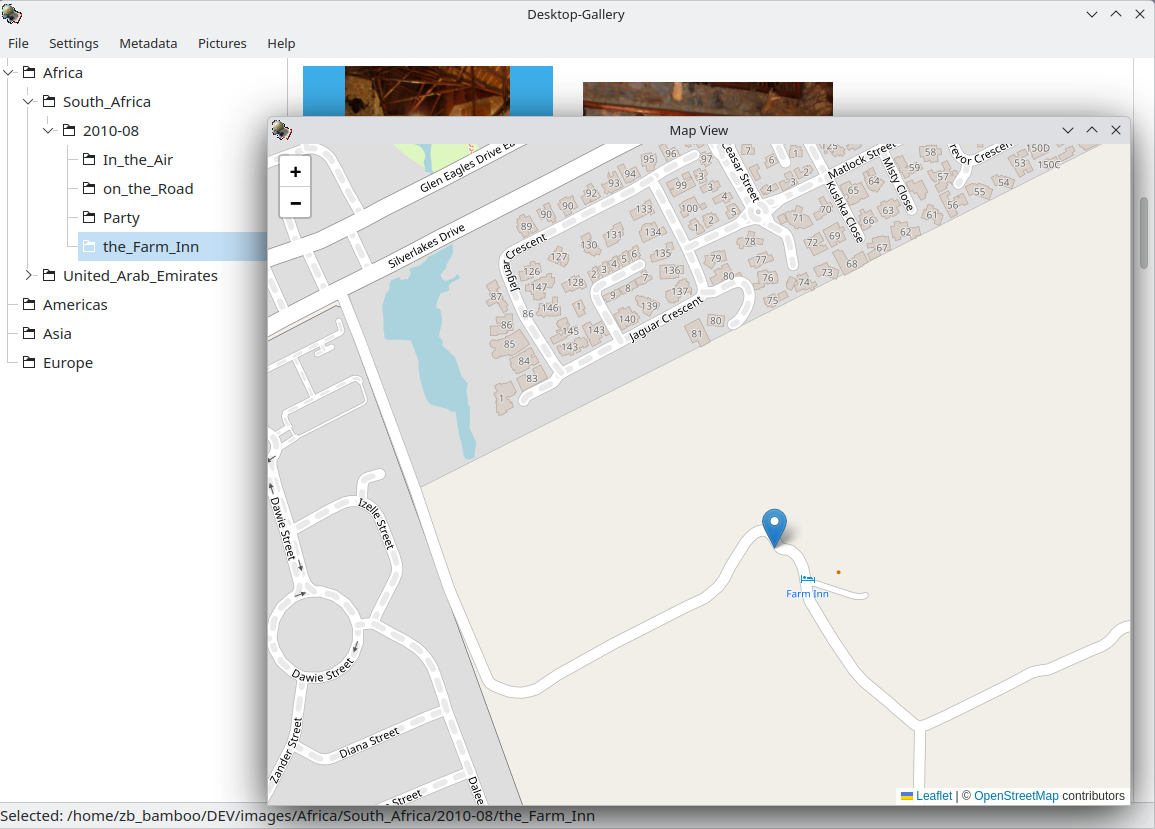
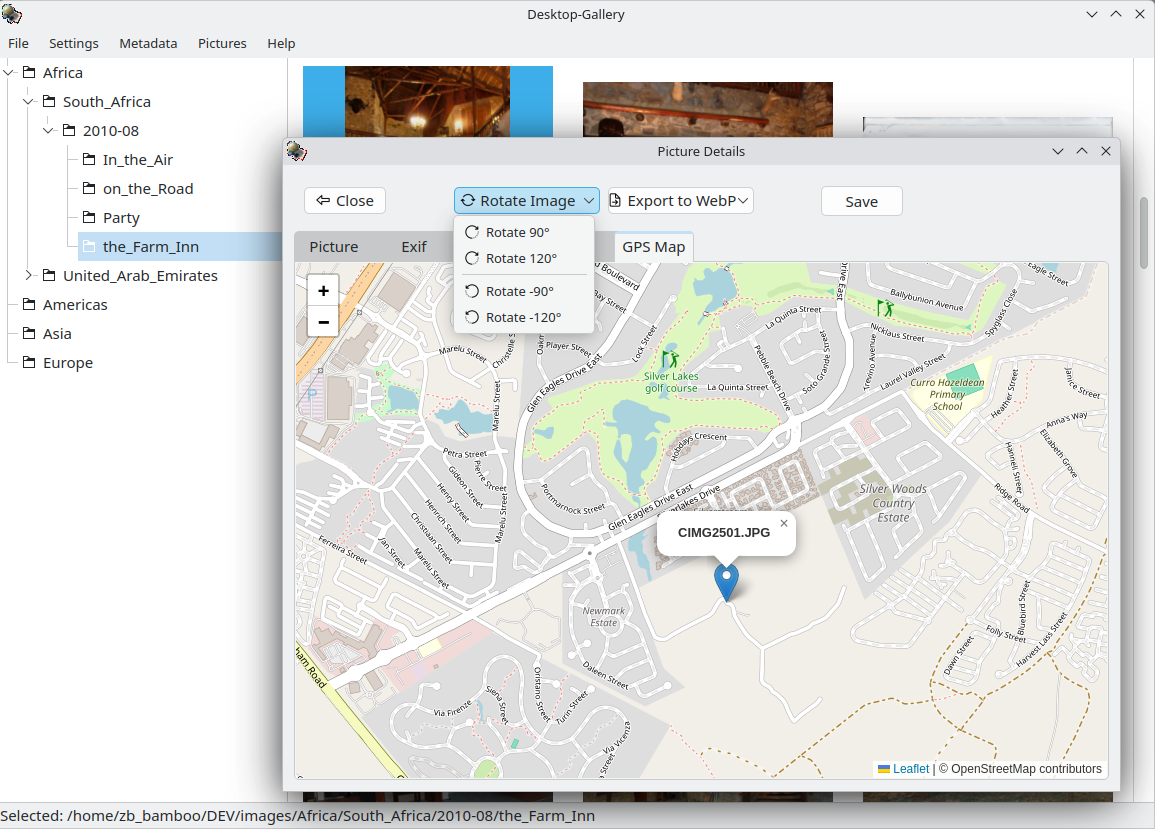
Visualize: Use Pictures -> Show selected on Map to see locations.

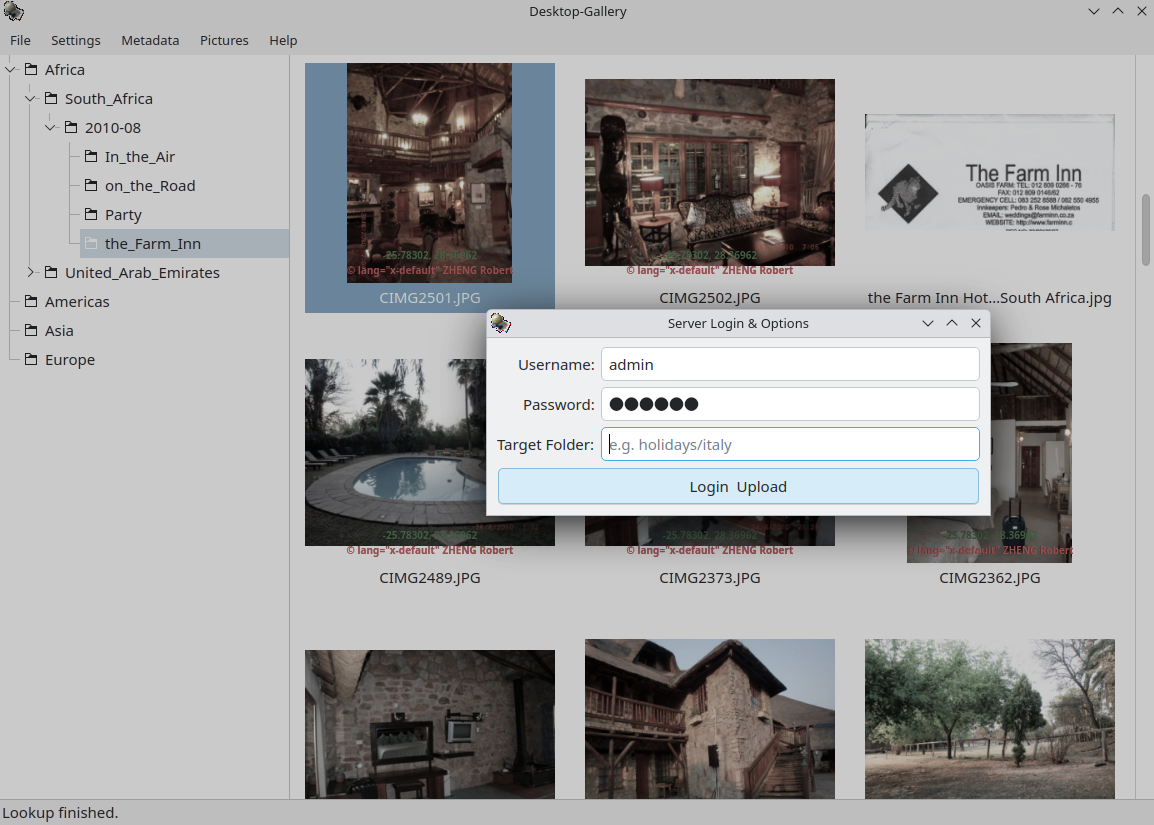
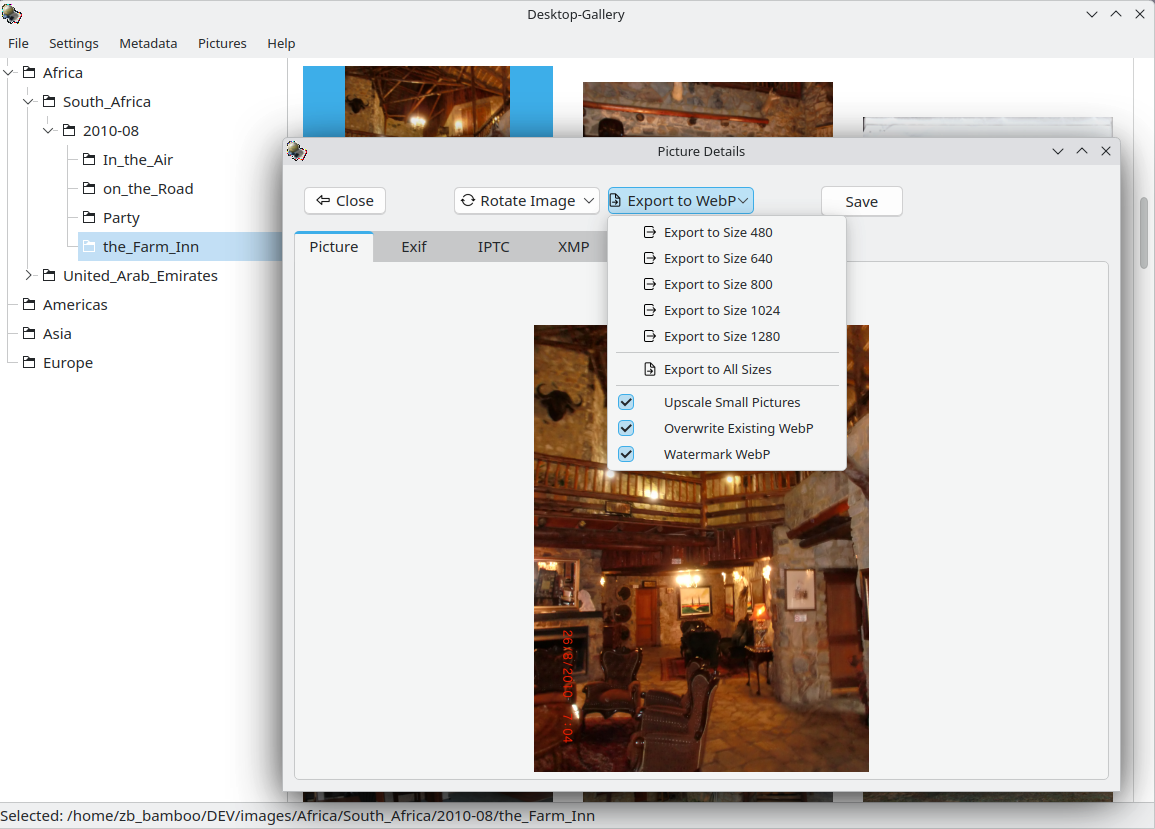
Export/Upload: Use the WebP Export menu for local conversion or Upload to Server to push to your web gallery.
Screenshots


Album View

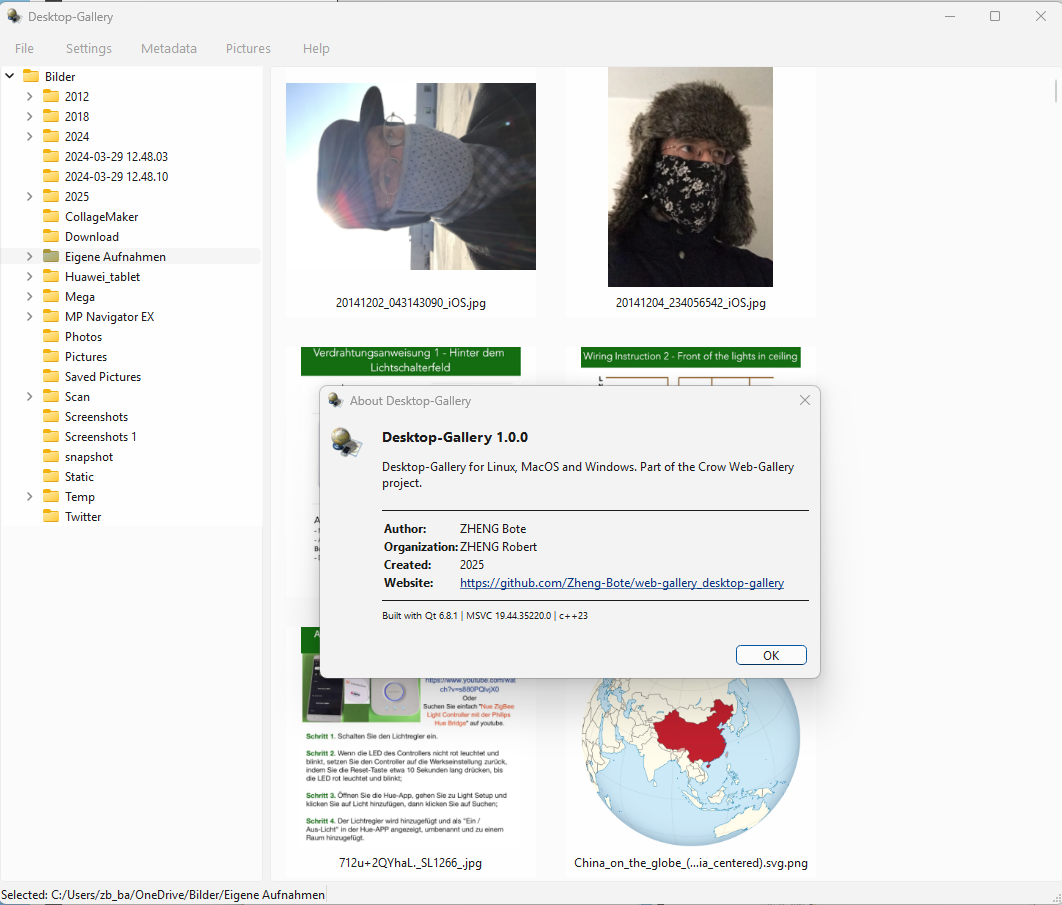
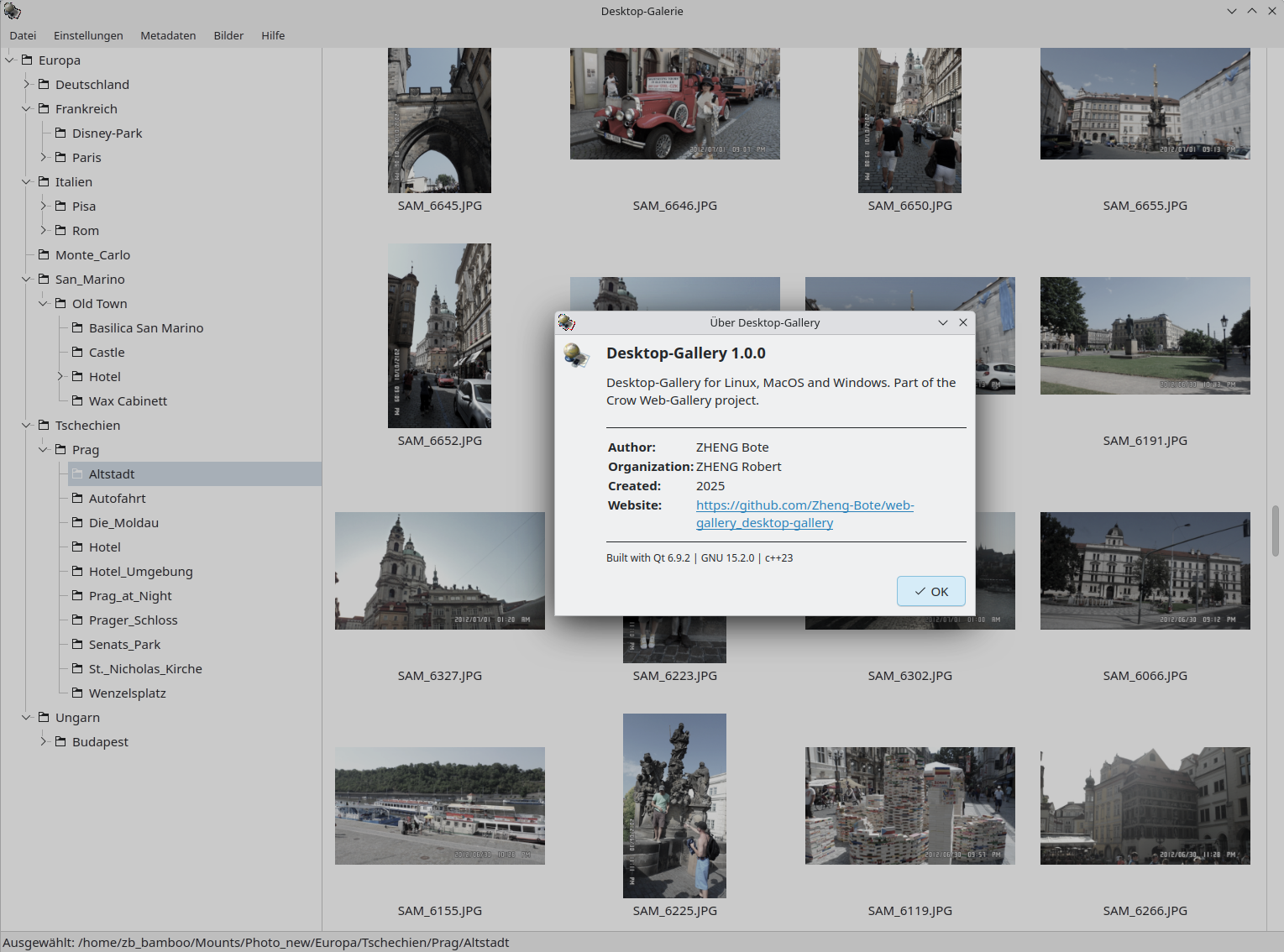
About

Windows: about this application.

About

Help

about this application

Album View

Album View

Main interface showing the database-driven thumbnail grid.

Context Menu

Context Menu

several Picture actions via context menu

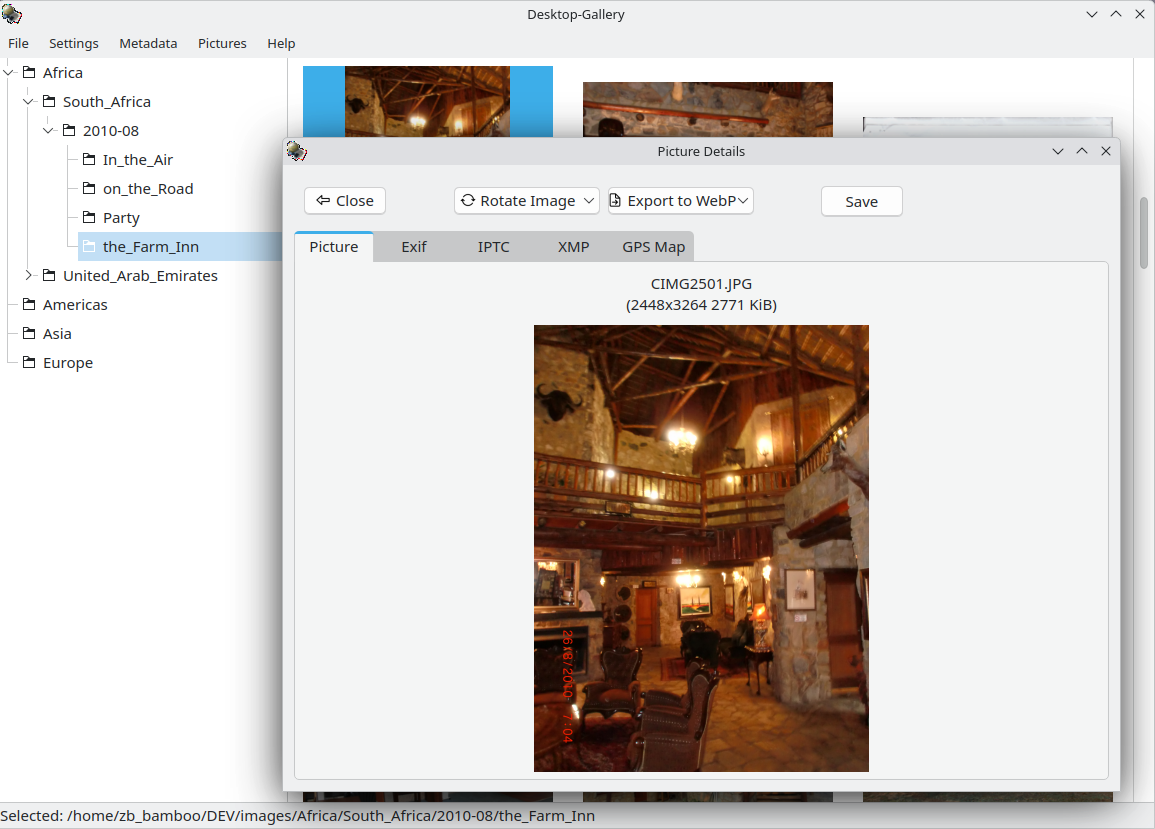
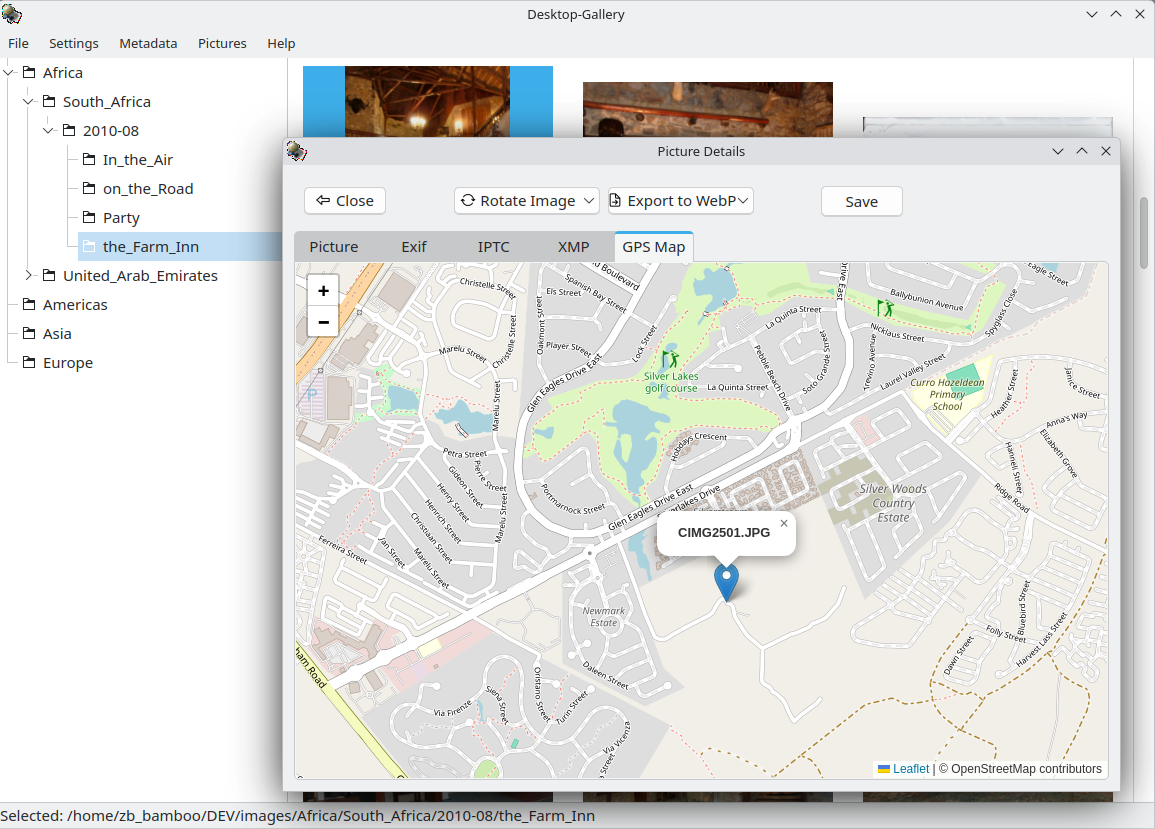
Photo Details

Photo Details

detail view of selected image with actions, metadata and location map

GPS Copyright View

GPS Copyright View

gps and copyright information of selected image

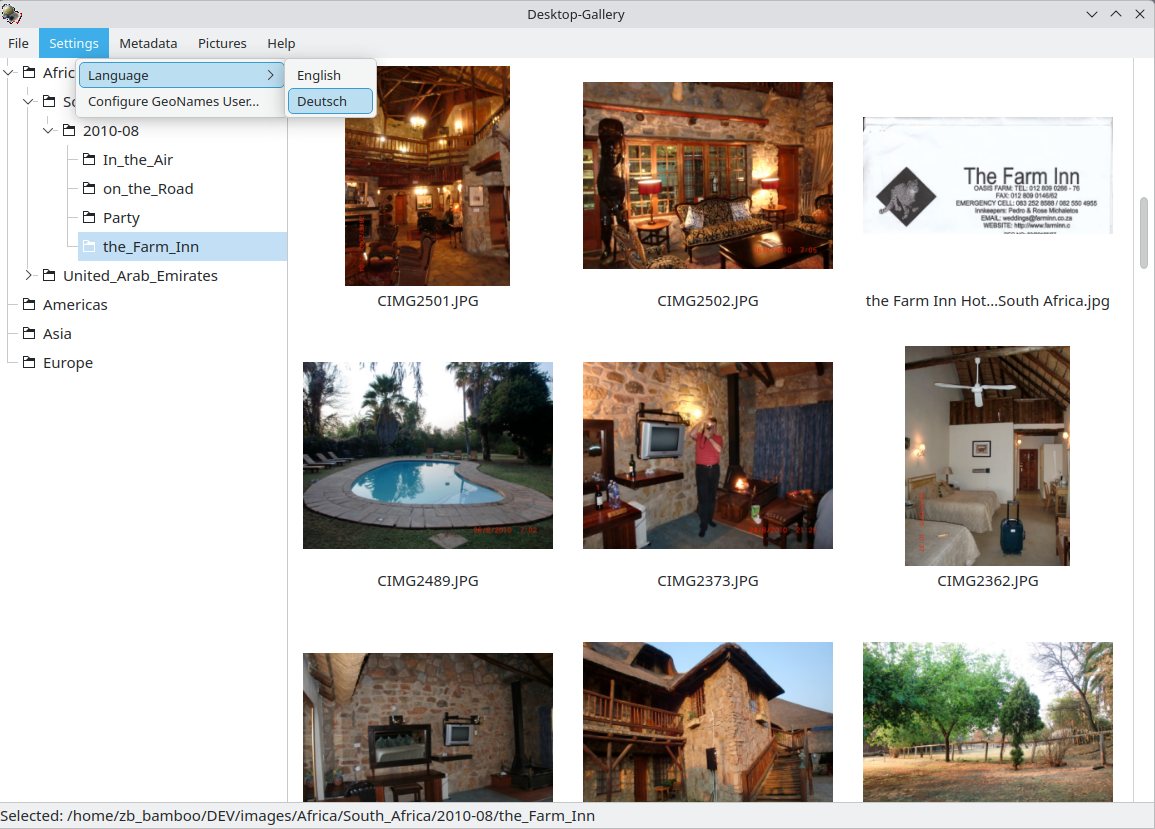
Internationalization (i18n)

Internationalization (i18n)

Live language switching (English/German).

Map View

Map View

Interactive map showing the location of selected images (Leaflet/OSM).

Map View

Photo Details

Responsive Picture view with extended editing and export options.

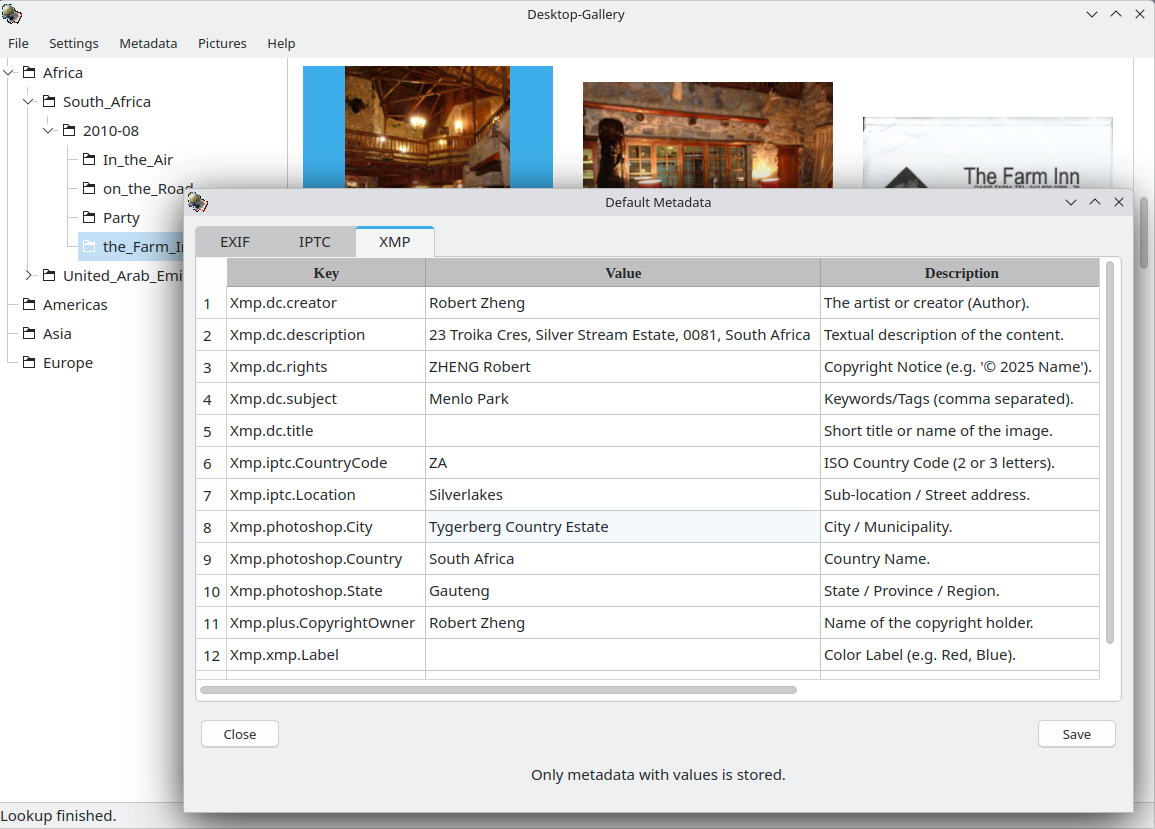
Metadata Editor & Sync

Metadata Editor & Sync

Edit EXIF, IPTC, and XMP data with automatic synchronization.

Metadata

Metadata

metadata of selected image

Rotate Image

Photo Details

rotate image

Sync

Sync

upload images to web gallery

WebP Export

Bulk conversion tool with resizing and watermarking options.